# How to Find Mac System Data with a Treemap
> Use a treemap to identify the real folders behind System Data, verify who owns them, and remove only content you can restore.
Published: 2026-09-04 | Updated: 2026-09-05
System Data is a Storage category, not a folder. A treemap helps because it shows the real directories underneath that category, but a large rectangle is only a lead. File size does not prove that the file is safe to delete.
Start with two questions: which app or system feature owns these bytes, and what would restore them after deletion? Those questions separate a cache from an active database, an old simulator runtime from a release archive, and a local copy from the only complete original.
## Why System Data changes without a clear cause
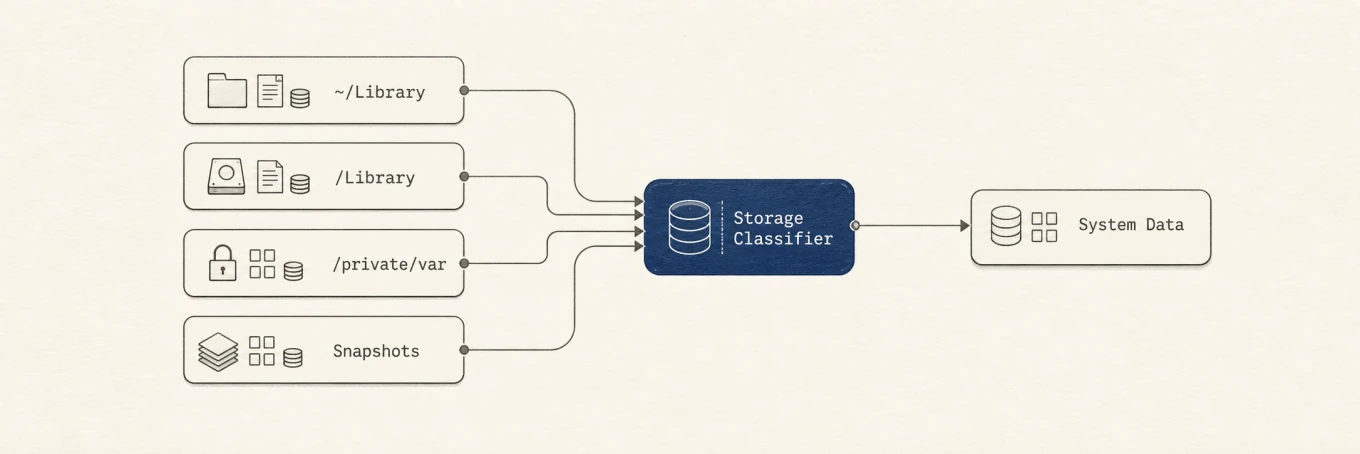
Apple's [Storage settings guide](https://support.apple.com/guide/mac-help/mchl3d437fbc/mac) describes System Data as files that do not fit a more specific category, including logs, caches, virtual-memory files, temporary files, fonts, app support, and plug-ins. The category can draw from several physical locations and changes as macOS reclassifies files.
That explains three common surprises. A deleted file may still occupy blocks referenced by an APFS snapshot. A cloud file can have a small local footprint but a large logical size. Storage settings can also lag behind the file system while indexing catches up. None of these turns System Data into one hidden folder that needs to be emptied.
System Data combines files from several roots. A treemap measures those roots; it does not turn the category into one deletable folder.
## What a treemap measures, and what it cannot know
Each rectangle represents a file or directory, and its area is proportional to the size reported by the scanner. The biggest block tells you where to investigate first. Clicking into it turns one vague category into a path that can be attributed to an owner.
The drawing still has limits:
- A scan without Full Disk Access may omit protected folders. Missing measurement is not free space and does not make those folders disposable.
- Different tools may show logical size, allocated blocks, or a directory total. APFS clones, sparse files, hard links, and cloud placeholders can make those values differ.
- A directory walk cannot assign snapshot-only blocks to a normal folder.
- A treemap reads the file system at one point in time. An active download, virtual machine, build, or media render can change while the scan runs.
Keep the complete path visible as you drill down. A folder named `Cache` under an app container has a different owner and recovery path from a similarly named folder under a project package.
## Read paths by ownership, not by their names
| Path or shape | What it often contains | Safer owner action |
|---|---|---|
| `~/Downloads`, `~/Movies`, project folders | Files you created, copied, or exported | Review in Finder, archive or Trash deliberately |
| `~/Library/Caches/` | Rebuildable app cache, sometimes expensive to recreate | Quit the app and use its cache control when available |
| `~/Library/Application Support/` | Databases, offline content, models, plug-ins, and user state | Use the app's storage or uninstall workflow |
| `~/Library/Developer` | DerivedData, simulators, device support, and release archives | Use Xcode, Simulator, and Organizer |
| `/Library` | Machine-wide support shared by users and apps | Identify the installing app before changing anything |
| `/System`, `/private/var/vm`, snapshot internals | Protected system and virtual-memory state | Leave to macOS |
`Application Support` is the important trap. It contains replaceable downloads beside unique databases and configuration. The folder name says who owns the data, not whether the data is a cache.
## A safe four-step drill-down
1. Confirm the block is large enough to explain a meaningful part of the missing capacity. Compare it with available space, not only the grey Storage category.
2. Identify the app, account, project, or system feature that owns it. Folder names, neighboring files, bundle identifiers, and the app's own storage screen provide stronger evidence than size alone.
3. Classify the content as rebuildable, downloadable, backed up, or unique. Record the time, bandwidth, credentials, or source media needed to recreate it.
4. Remove it through the owner where possible. Otherwise move a clearly understood user-owned item to Trash, reopen the owner, and test before emptying Trash.
This order keeps the highest-cost decision until the evidence is strongest. It also gives you a recovery window. Moving an item to Trash is reversible until the Trash is emptied, but it does not release capacity while it remains there.
## Two examples of turning a block into a decision
Suppose `~/Library/Developer/CoreSimulator` dominates the map. A second scan may show that runtime images, simulator devices, and caches contribute different amounts. The safe action depends on which one is large: Xcode's Components screen owns runtimes, Devices and Simulators owns virtual devices, and `simctl delete unavailable` removes device records with missing runtimes. Deleting the whole directory would mix three different recovery costs into one irreversible action.
A large Docker disk image is another useful example. The file can appear as one rectangle even though it contains images, build cache, volumes, and running container data. Finder cannot tell which layer is disposable. Docker's own disk-usage and prune commands can, so the treemap should lead you into Docker rather than delete its disk image.
The same rule holds for Photos libraries, Mail databases, browser profiles, local AI models, and creative-project packages. Use the map to find the owner, then make the content decision inside that owner.
## Why space may not return immediately
Emptying Trash releases normal deleted files, but APFS snapshots can still reference older blocks. Time Machine also counts local snapshot space as available and removes snapshots as they age or capacity is needed, according to Apple's [local snapshot guide](https://support.apple.com/guide/mac-help/mh35933/mac). Do not run a thinning command only because a snapshot exists.
Storage settings may need time to index and classify what remains. Check available capacity in System Settings or Disk Utility and verify that the specific folder shrank. Chasing the System Data number after the identified block is gone can turn a successful cleanup into a second, riskier deletion.
## Where Mole fits
Mole's Analyze view renders folders as a treemap and lets you drill into the blocks that consume the most space. The context menu can reveal an item in Finder or move an understood item to Trash. Analyze does not mark every large rectangle as disposable.
Clean is a separate surface with reviewed categories and narrower deletion rules. That split is deliberate: Analyze answers where the bytes live, while the owner and recovery path determine whether anything should be removed.
For the Storage classification and APFS accounting behind the grey category, read [what System Data on Mac actually contains](https://mole.fit/blog/what-is-system-data-on-mac). For snapshots, use [the Time Machine snapshot guide](https://mole.fit/blog/how-to-delete-local-time-machine-snapshots-mac).
## FAQ
### What should I never delete from a treemap?
Do not manually remove protected system files, snapshot internals, swap, active app databases, cloud placeholders, or anything whose owner and recovery path you cannot identify.
### Why does Finder show a different size from the treemap?
The tools may be reporting different things, such as logical file length, allocated blocks, reachable directory contents, or cloud-backed data. Permissions, APFS clones, sparse files, and changing files can widen the difference.
### How do I clear local Time Machine snapshots?
Connect the backup disk and let Time Machine complete its work first. If a specific storage problem remains, list the snapshots and follow an Apple-supported workflow rather than deleting snapshot internals.
### Does a treemap reduce System Data by itself?
No. It shows where bytes live. You still need to decide whether they are recoverable and use the owning app or a reversible Trash action to remove them.
---
Canonical HTML page: https://mole.fit/blog/how-to-use-treemap-to-find-mac-system-data
Blog index for agents: https://mole.fit/blog/llms.txt
Site index for agents: https://mole.fit/llms.txt