CleanMyMac Alternatives: Free, Paid, and Job-Based Picks

Searching for a CleanMyMac alternative sounds like a product question, but it is really a job-definition question. Cleaning caches, uninstalling apps, mapping disk usage, monitoring hardware, and scanning for malware are different jobs with different risk. No utility becomes safer or better merely by combining them in one app.
This guide compares the main choices by the work they are designed to do, what they do not replace, and how their licensing affects long-term cost. Features and prices change, so verify the linked vendor pages before buying.
Mole vs CleanMyMac: what actually changes
Mole can replace the CleanMyMac jobs that involve cache cleanup, app inventory and remnants, disk mapping, and live system status. It does not replace malware scanning, real-time threat monitoring, or a backup. CleanMyMac is the better fit when those security modules and a guided vendor-supported suite are part of the purchase. Mole is the better fit when you want a native app that keeps discovery and removal separate and uses a one-time license.
| Question | Mole for Mac | CleanMyMac |
|---|---|---|
| Native app or CLI? | A native Mac app; the free Mole CLI is a separate product surface | A native Mac app |
| Cleanup review | Shows candidate path, owner, size, and category before confirmation | Smart Care preselects tasks; individual modules expose details for review |
| Ordinary removal | Uses a review plan, Trash, and an operation log | Recovery behavior differs by module, so check the selected task before running it |
| App management | App and update inventory, startup items, uninstall remnants; vendor uninstallers still come first for system-integrated software | App updates, uninstall, and leftover removal in the suite |
| Disk analysis | Interactive treemap of files and folders | Disk breakdown, Space Lens, and large-file tools |
| System status | CPU, memory, GPU, disk, network, battery, fans, and processes, including a menu bar HUD | CPU, memory, disk, network, battery, and health indicators in the CleanMyMac Menu |
| Malware response | None; use a maintained security product | Malware scanning plus optional real-time and background monitoring |
| License | $19 once, two Macs, free updates | Subscription includes future major versions; one-time purchase covers the current major version |
If the Mole column matches the work you need, try Mole for Mac. Each paid tool can be used twice before purchase, so the comparison can start with the actual scan rather than a feature list.
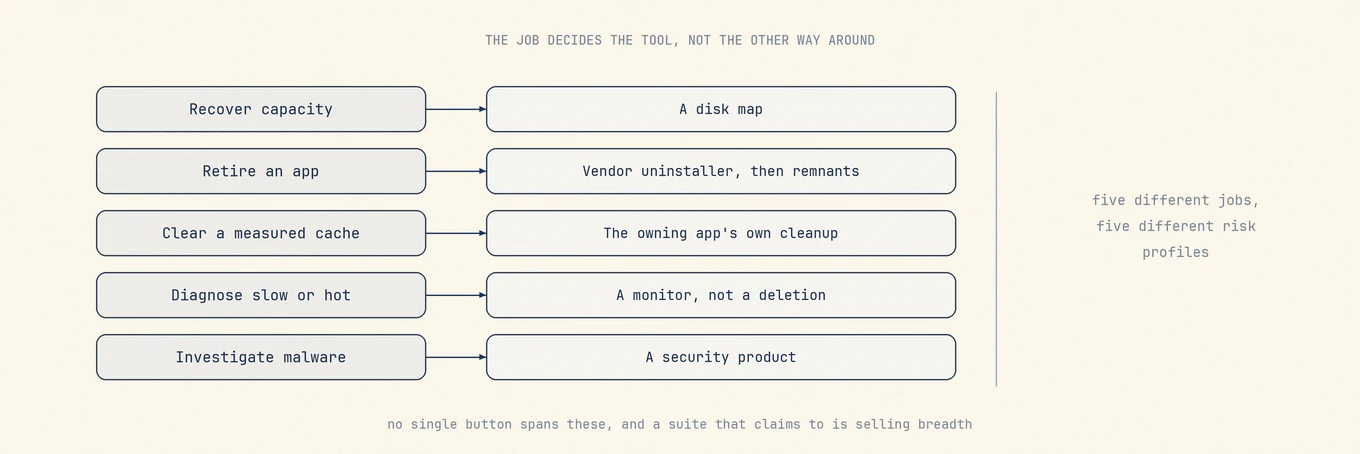
Start with the job you actually need
Choose one primary outcome:
- Recover disk capacity: begin with a disk map. It tells you whether the weight is Photos, Docker, Xcode, device backups, downloads, or a true cache.
- Retire an app: use the vendor uninstaller for software with drivers, extensions, VPN components, or privileged helpers. Use a remnant scanner for simple app support files after that.
- Clear a measured cache: prefer the browser, package manager, or app's own cleanup command because it understands its indexes and shared data.
- Diagnose a slow or hot Mac: use Activity Monitor and a system monitor. Deleting files cannot fix a CPU loop or explain thermal throttling.
- Investigate malware: use a security product with current detection and response capability. A cache cleaner is not a substitute.
If the Mac has comfortable available capacity and no diagnosed problem, the best cleanup may be no cleanup. macOS already manages memory cache, purgeable data, and local snapshots under pressure.
Evaluate safety before feature count
For a focused answer to the brand question, use the same criteria in Is CleanMyMac Safe? before comparing feature lists.
A preview is necessary but not sufficient. A convincing utility should answer these questions clearly:
- Does it show the exact path, owner, size, and consequence before removal?
- Does it distinguish cache from preferences, profiles, messages, databases, and shared containers?
- Does it use the owning app's cleanup interface when one exists?
- Are ordinary removals recoverable, and are skipped or failed items reported?
- Which features require Full Disk Access, Automation, or a privileged helper?
- How quickly are rules updated when macOS and third-party apps change?
- Does the license include future major versions, and how many Macs does it cover?
A large "junk found" number is not evidence of quality. Re-download cost, lost offline access, and shared app data matter as much as bytes.
The choices by job
Built-in macOS tools for occasional maintenance
System Settings, Activity Monitor, Finder, App Store, Time Machine, and Terminal cover most one-off tasks. They cost nothing, expose the original system state, and avoid installing another always-available utility. Their weakness is assembly: storage, startup, updates, processes, and privacy live in separate interfaces, and hidden Library paths are hard to attribute.
This is the right starting point for a Mac that needs attention only a few times a year. It also provides the baseline against which every paid tool should save time.
Mole for a review-first multi-tool
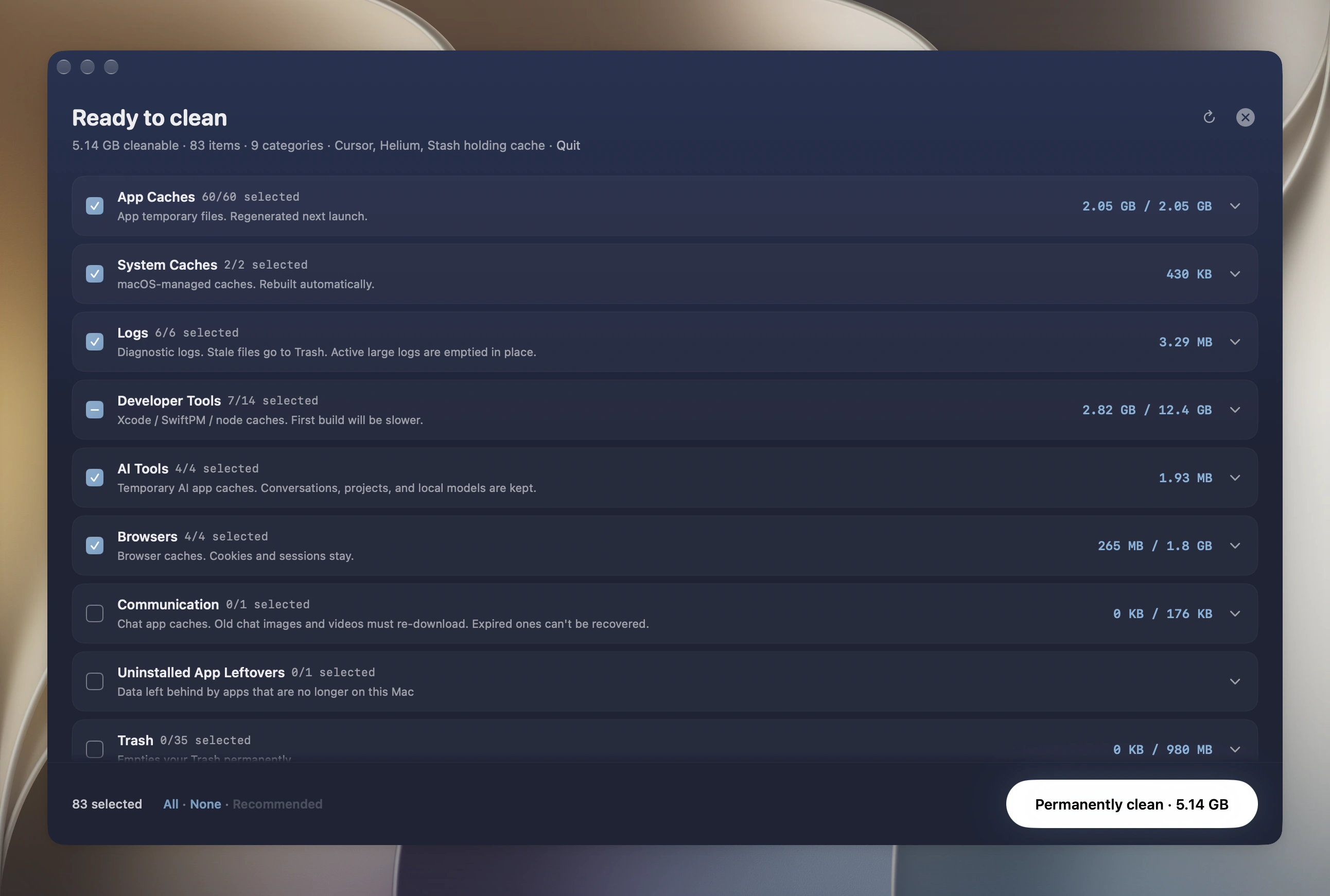
Mole combines reviewed cache categories, app and update inventory, uninstall remnant discovery, a disk treemap, and system status in one native app. Ordinary file removals go through a review plan and Trash, and personal stores such as Photos, Messages, and local model libraries remain with their owning apps.
Its current license is a one-time purchase with free updates for two Macs, and it requires macOS 14 or later. It does not replace a malware-response product, a backup, or a vendor uninstaller for system-integrated software. Choose it when the combined inventory saves recurring work and its supported OS range fits your Macs.
CleanMyMac for a guided mainstream suite
CleanMyMac combines cleanup, uninstall, performance, privacy, and security-oriented features in a guided interface. It is the familiar choice for someone who wants a broad consumer suite and prefers vendor support over assembling built-in tools.
MacPaw currently offers both subscriptions and one-time purchases. Its purchase documentation explains an important distinction: a subscription includes future major upgrades while active, while a one-time purchase covers the current major version. Compare that upgrade policy and device count with the checkout price. MacPaw also documents feature differences between its own store, the App Store, and Setapp editions, so compare the edition as well as the product name. As with any broad suite, review cleanup candidates and understand which modules request additional permissions.
App Cleaner & Uninstaller for app lifecycle work
Nektony's App Cleaner & Uninstaller is no longer only a small remnant remover. Its current feature set also covers startup programs, extensions, and app updates. Uninstall remains the central job, which makes it a useful fit for people who frequently test and retire apps but do not need a full system dashboard.
The same uninstall boundary still applies: vendor workflows come first for VPN, antivirus, virtualization, audio, and driver software, and group containers require shared-ownership review. Check its current subscription and lifetime options on the official purchase page.
DaisyDisk for understanding disk usage
DaisyDisk is a focused visual disk analyzer. It is a good choice when the real question is "what is large?" rather than "which caches should a suite remove?" A map is especially useful for virtual disks, media libraries, archives, and developer trees that do not belong in a generic junk category.
DaisyDisk uses a one-time license according to its pricing documentation. It does not replace an app-aware uninstaller or a continuous system monitor. After finding a large item, use Finder or the owning app to decide whether it is disposable.
OnyX for explicit maintenance controls
OnyX is free and exposes maintenance and configuration controls directly. Separate releases target specific macOS versions, which is a useful warning: low-level maintenance behavior is tied to the OS, and the matching build matters.
Choose OnyX when you understand the operation you intend to run and want an explicit control rather than an all-in-one recommendation. It is not the ideal first tool for someone who wants the app to decide what is safe without review.
iStat Menus for long-running system history
iStat Menus focuses on menu-bar monitoring and historical system data. It is the better fit when the question involves a CPU spike, network burst, fan trend, or battery behavior that must be correlated over time. Its history and customization are deeper than a general cleanup suite needs to be.
It does not clean caches or uninstall apps. That focus is an advantage when monitoring is the job: the product can be judged by sampling cost, sensor coverage, history, privacy, and clarity rather than by deletion breadth.
Sensei for a dashboard-led suite
Sensei combines hardware and performance information with cleanup and app-management features. Consider it when SSD, battery, and thermal context are the main attraction and cleanup is secondary. Verify current model support, licensing, and the exact cleanup preview on the official site before deciding.
Quick comparison
| Choice | Primary strength | Important boundary | License approach |
|---|---|---|---|
| Built-in tools | Original system controls | Manual and scattered | Included with macOS |
| Mole | Integrated review and disk map | Not malware response or backup | One-time, free updates |
| CleanMyMac | Guided broad suite | Review permissions and upgrade policy | Subscription or current-major purchase |
| App Cleaner & Uninstaller | App lifecycle and remnants | Vendor uninstallers still come first | Subscription or lifetime option |
| DaisyDisk | Visual disk attribution | Not app-aware cleanup or monitoring | One-time |
| OnyX | Explicit maintenance controls | Requires macOS and operation knowledge | Free |
| iStat Menus | Monitoring history and customization | No cleanup or uninstall | One-time with major upgrades |
| Sensei | Hardware-led dashboard | Verify current support and cleanup scope | Vendor options vary |
Make the decision without marketing
Try the narrowest tool that answers the diagnosed problem. Run a scan without deleting, inspect whether the candidates are understandable, and compare the result with built-in tools. Check the official download source, macOS support range, permissions, recovery behavior, and upgrade policy.
Choose a suite when its integrated inventory repeatedly saves time. Choose a focused tool when one job matters more than breadth. Choose no utility when macOS already gives you the answer. The best alternative is the one whose scope and trust boundary match the work, not the one that promises the largest cleanup number.
FAQ
Is CleanMyMac safe to use?
It is notarized by Apple, which includes automated checks for known malicious code. That is not a guarantee that software is free of malware or a correctness check: it says nothing about whether a tool's deletion rules match your machine. Judge any cleaner, this one included, by whether it shows the candidate list before deleting, refuses when a file changed after the scan, and leaves a log you can read afterwards.
Is CleanMyMac worth paying for?
It depends on whether you need a suite or one job. If you repeatedly use several of its modules and value the integrated inventory, the subscription buys real time back. If you only ever open it to uninstall an app or free some space, a focused tool or a built-in macOS feature covers that without a recurring bill. Price the tool against the job you actually diagnosed, not the one the marketing page describes.
Can Mole replace CleanMyMac?
It can replace cleanup, app management, disk analysis, and system monitoring for people who prefer to review the work before removal. It cannot replace CleanMyMac's malware scanning or real-time protection, and neither product replaces a tested backup or the vendor uninstaller for system-integrated software.
Is there a free alternative that does the same jobs?
For individual jobs, yes. AppCleaner covers uninstalling, OnyX covers maintenance tasks, and macOS Storage Settings covers basic cleanup. For the combined workflow the honest answer is that free tools split it across several apps, and whether that trade is worth it depends on how often you do the work.
Does open source make a cleaner safer?
It makes the deletion rules auditable and lets bad ones be reported and fixed in public, which is meaningful evidence. It is not a guarantee, because auditable is not the same as audited. Treat it as one input next to previews, refusal behavior, and logs.
What should I check before running any of these?
Run a scan without deleting and read the candidate list. If the entries are understandable and the tool can tell you why each one is there, that is a good sign. If the first meaningful output is a number of gigabytes and a Clean button, you are being asked to trust a decision you were never shown.
Which CleanMyMac alternatives have no subscription?
Mole for Mac is a native app costing $19 once for two Macs, with free updates. AppCleaner and OnyX are free, while DaisyDisk uses a one-time license for disk analysis. The free, open-source Mole CLI is a separate interface. CleanMyMac itself also offers a one-time purchase, but MacPaw’s policy covers the current major version rather than future major upgrades. Compare the task and upgrade policy along with the recurring cost.
Can I undo every cleanup?
No. Mole’s ordinary file removals can usually be restored while the files remain in Trash. Cache cleanup defaults to permanent deletion, and emptying Trash is permanent even if other removals use Trash. An operations log records actions; it is not a backup or a complete undo of an uninstall. Check the selected removal mode and keep an independent backup of personal data. For CleanMyMac, recovery depends on the selected module and action.