Why Your MacBook Fan Is Loud
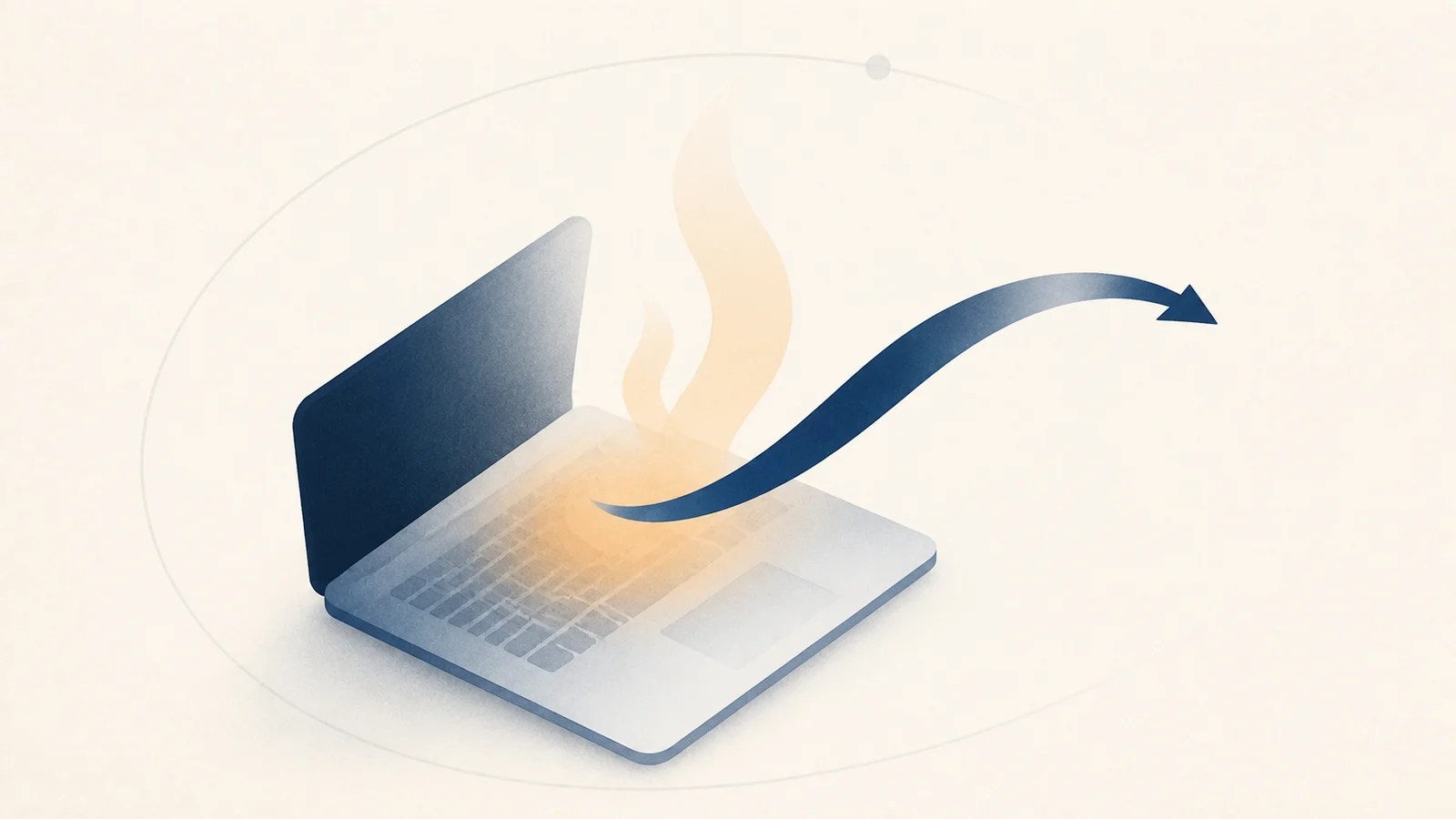
A loud fan during sustained work is often the cooling system doing its job. A fan that runs hard at idle, grinds, pulses without load, or accompanies shutdowns is a different signal. Start by correlating workload, thermal pressure, airflow, and fan behavior. Some MacBook Air models are fanless, so heat and throttling can occur without noise.
How a Mac decides to spin the fans
A Mac with controllable fans exposes temperature and fan controls through the system-management interface commonly called the SMC. Sensors track heat across the logic board, CPU, and GPU, and the thermal controller raises fan speed along a built-in curve. If airflow cannot keep up, the chip protects itself by throttling: it lowers its clock speed and voltage so it produces less heat, which is why a hot Mac feels slow as well as loud.
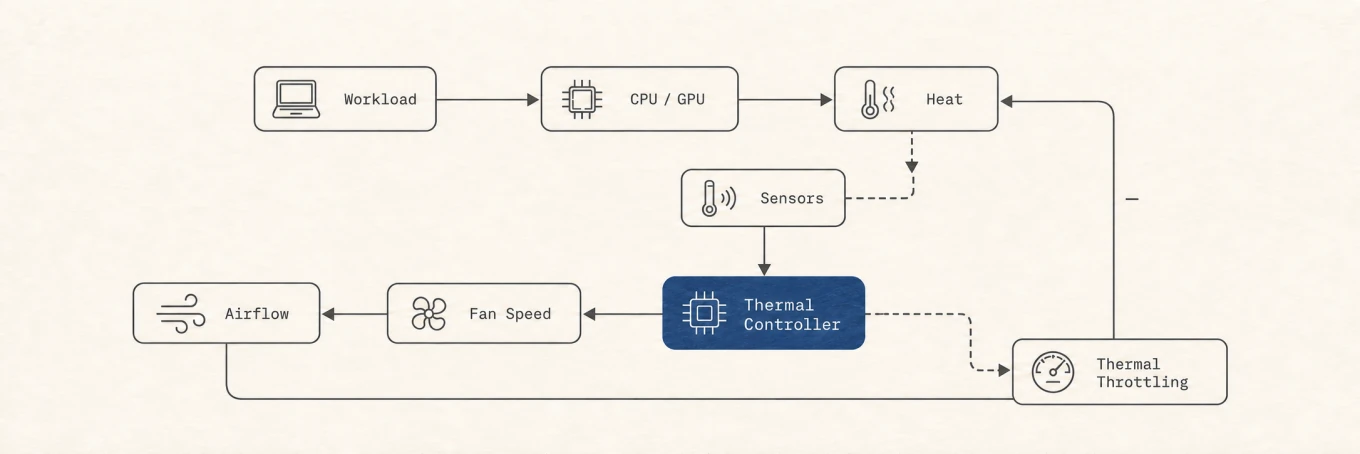
You can watch this happen instead of guessing. For a live view of power draw and the thermal pressure the system is under:
sudo powermetrics --samplers thermal,cpu_power -n 1
Reading exact die temperatures from the command line is harder on Apple Silicon, because it needs direct access to the SMC, but the thermal-pressure level (such as nominal, moderate, or heavy) tells you whether the Mac is fighting heat. To check whether macOS has recorded thermal or performance warnings:
pmset -g therm
The available fields vary by Mac and macOS version. Treat them as system pressure signals, not a universal thermometer or a percentage that maps directly to clock speed. Loud fans can still be normal before macOS reaches a warning state.
First, is the load expected or is a process stuck?
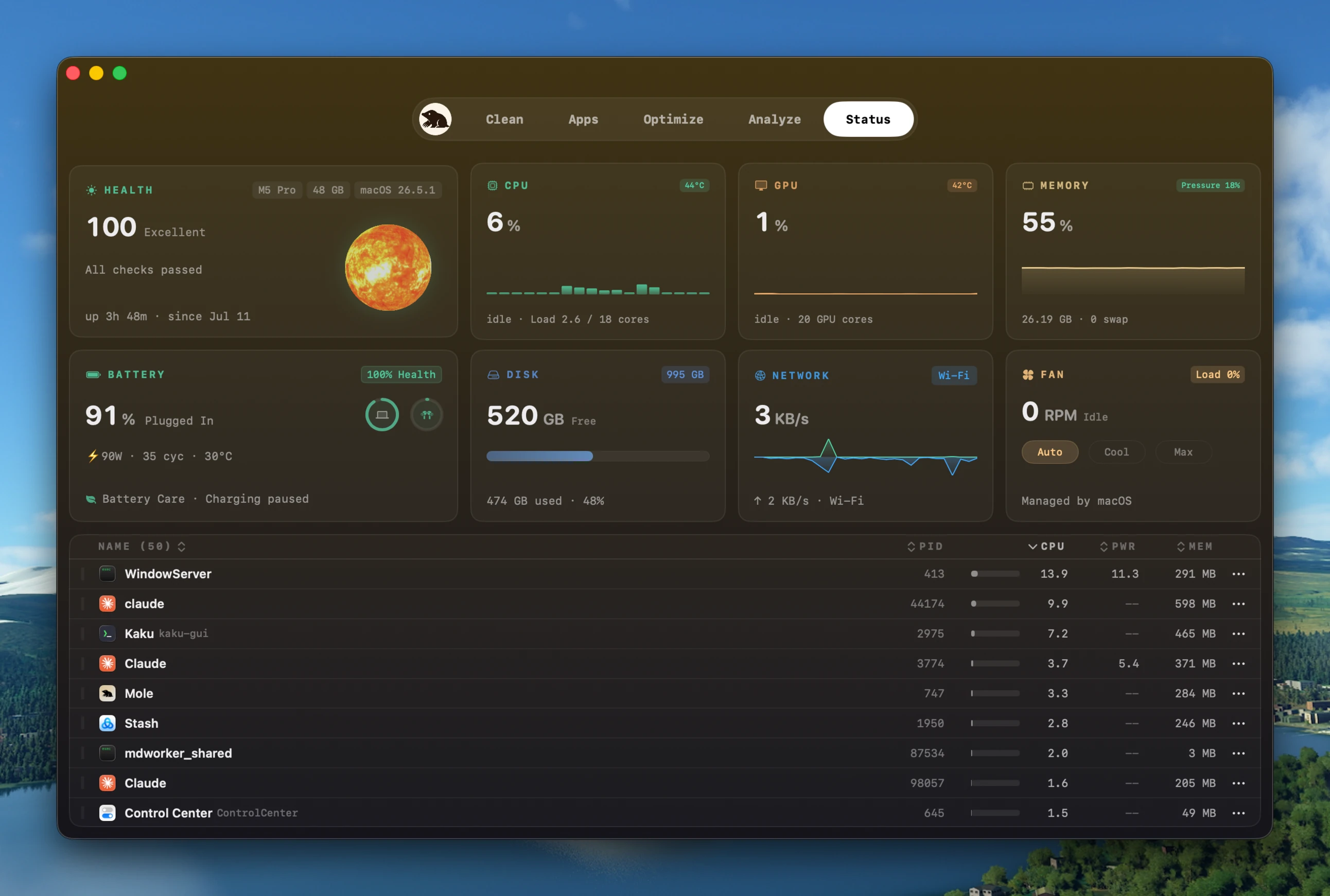
Loud fans with nothing obvious running usually mean a background process is
pinning the CPU. Find it with top -o cpu in Terminal, or the Activity Monitor
CPU tab. A stuck app, a sync client re-indexing, or a helper caught in a loop can
push the chip to full power invisibly.
If you recognize the process and can stop its work safely, quit it and watch the trend during cooldown. Large metal enclosures and heat sinks can take time to settle. If the load is a video export, compile, or game, the fan response is expected; decide whether to reduce concurrency, improve airflow, or accept the noise for the duration.
Reduce the load and help airflow
When the heat is legitimate, make cooling easier:
- Close what you are not using, especially many browser tabs and heavy background apps.
- Put the Mac on a stable work surface so nothing blocks the vents. Apple's temperature guidance specifically warns against beds, pillows, and bedding, and recommends an ambient range of 10 to 35 degrees Celsius.
- Let a temporary job like a Spotlight reindex or a first Time Machine backup finish, then check whether the fans calm down.
The outside case is not an internal temperature sensor. Apple cautions that third-party sensor apps do not measure case temperature and should not be the sole basis for diagnosing hardware. Correlate load, thermal pressure, fan response, and shutdown or performance symptoms.
Because heat makes the chip throttle, a hot Mac is often a slow Mac too. If yours feels sluggish as well as loud, see why your Mac is slow.
Keep automatic fan control as the default
The firmware curve is the safest default because it combines model-specific sensors, power state, and hardware limits. On a Mac with controllable fans, a tool may offer a temporary higher minimum for a known sustained workload. It should never lower the firmware's requested speed or remain in manual mode after sleep, restart, or app exit. Mole, for example, exposes three bounded modes:
- Auto: the firmware's own thermal curve, the default.
- Cool: holds the fans at a raised, steady speed for extra headroom under load.
- Max Cool: runs the fans at full for maximum cooling.
The limits matter more than the feature. This only exists on Macs with controllable fans, so a fanless MacBook Air has nothing to control and the option stays hidden. Writing to the SMC needs elevated rights, so the first time you pick a cooling mode, macOS asks you to authorise a small system helper that performs the change; nothing touches the SMC without that. A cooling mode is a hold, not a setting: the fans return to Auto when the Mac sleeps or the app quits, so you never leave them stuck on. And the targets are clamped to each fan's own safe minimum and maximum reported by the SMC, so a mode can push more air but can never drive a fan past what the hardware allows.
Running fans harder can add headroom under load, at the cost of noise and fan wear. It cannot fix an idle heat source, obstructed airflow, bad sensor, or failing cooling hardware. A manual curve that hides those symptoms delays the right diagnosis.
What safe manual control requires
Fan control needs more than a slider. Writing to the System Management Controller requires root, so the app itself does not perform the write. The change travels through a narrow, checked path:
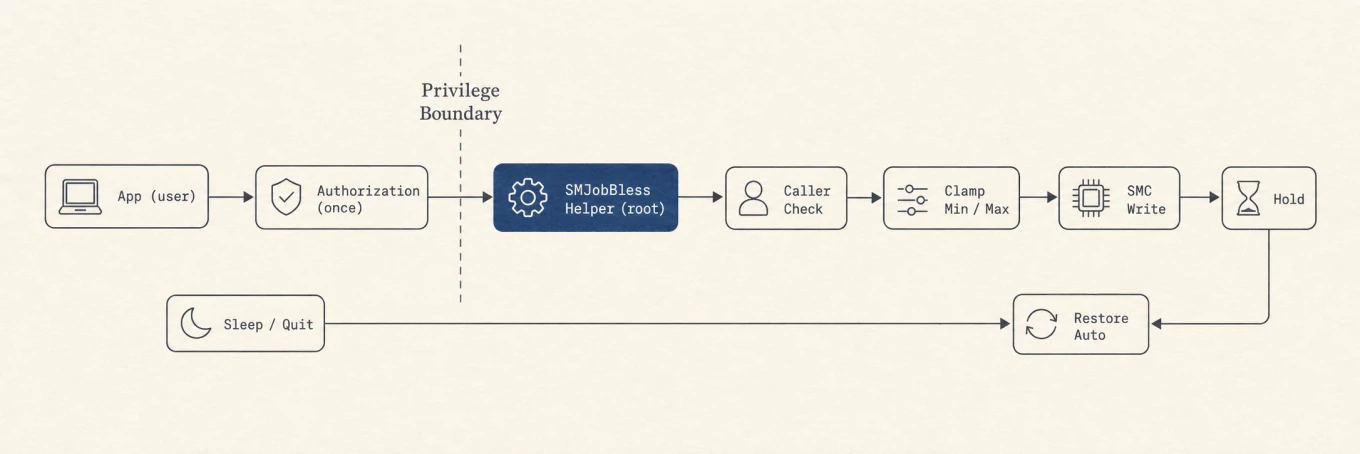
Every box is a guard. The app has no privilege to touch the SMC on its own; a separate root helper does the write, and it is installed only once, behind a macOS authorization prompt, using the system's own SMJobBless mechanism. The helper checks that whoever is calling it carries the right Developer ID before it does anything, so another process cannot drive your fans through it. The target it writes is clamped to each fan's own reported minimum and maximum, and if it cannot read those limits it refuses the write rather than guessing. And because a cooling mode is only ever a hold, sleeping or quitting hands the fans straight back to the firmware. (The open-source CLI, by contrast, only reads temperatures; controlling the fans is a Mac-app feature precisely because it needs this privileged path.)
When it is actually hardware
If the fan is loud after CPU, GPU, sync, indexing, external displays, charging, and ambient heat have been ruled out, run Apple Diagnostics and seek service. Grinding, failure to spin under load, repeated thermal shutdowns, or warning state at light load are stronger hardware evidence than fan speed alone. Do not open a Mac or replace thermal materials based only on a software reading.
A repeatable fan check
Record idle state, run a known workload, take a bounded thermal sample, and watch the cooldown. If the fan follows load, the controller is responding. If it remains loud at idle, isolate power and display accessories and run diagnostics. Use automatic control by default; a temporary higher fan mode is an optional workload tool, not a repair.