How to Check MacBook Battery Health, Cycle Count, and Condition

MacBook battery health is not one number. Maximum Capacity estimates how much charge the battery can hold, Cycle Count tracks accumulated full-cycle equivalents, and Condition is macOS's service assessment. Real unplugged runtime, unexpected shutdowns, temperature, and physical changes provide context that a percentage cannot.
This check takes about five minutes. Record the results instead of reacting to one reading, then use the action table below to decide what to do.
Start in Battery settings
Open Apple menu › System Settings › Battery. Current macOS versions separate two related controls:
- Click the info button next to Battery Health to see Condition and Maximum Capacity.
- Click the info button next to Charging to review Optimized Battery Charging and, on supported Macs, Charge Limit.
Apple describes Normal as a battery functioning normally. Service Recommended means it holds less charge than when new or is not functioning normally. That message is a reason to investigate and plan service, not proof that the Mac is immediately unsafe. Physical deformation, smoke, odor, unusual heat, or repeated unexpected shutdowns make the situation more urgent.
Find Cycle Count in System Information
Hold Option, open the Apple menu, choose System Information, then select Hardware › Power. Under Health Information, note Cycle Count and Condition. This is the exact path in Apple's cycle count guide.
For a repeatable text record, Terminal can show the same report:
system_profiler SPPowerDataType
Save the lines for Cycle Count, Condition, and Maximum Capacity. The command is
useful when comparing the same Mac several months later, but Battery settings remains
the clearest place to interpret Apple's current status.
What each result means
| Signal | What it tells you | What it does not tell you |
|---|---|---|
| Maximum Capacity | macOS's estimate of present full-charge capacity compared with when the battery was new | Exact hours of runtime or whether service is urgent |
| Cycle Count | Accumulated use equal to 100% of capacity, which can span several partial discharges | Battery age, heat exposure, or condition by itself |
| Condition | macOS's current Normal or Service Recommended assessment | Which workload is draining power today |
| Unplugged runtime | How long your actual workload lasts | Battery condition unless the test is repeatable |
A cycle is cumulative. Two uses of about 50% can add up to one cycle, so plugging in often does not create one cycle each time. Partial charging is normal for lithium-ion batteries, and you do not need to drain a MacBook to zero before recharging it.
Apple's rated maximum cycle count is model-specific. Its table includes models rated for 300, 500, or 1,000 cycles. Identify the exact model in System Information and use Apple's model table instead of applying 1,000 to every MacBook. Apple says these batteries are designed to retain up to 80% of original capacity at their maximum cycle count. That is a design target, not a universal rule that every battery below 80% needs immediate replacement or every battery above 80% is healthy.
What accelerates battery aging
Lithium-ion cells age from temperature, charging pattern, and time together, which is why two Macs with the same cycle count can be in different shape. Heavy work while charging, direct sun, or a blocked vent keeps the cell hot for long stretches, and sustained heat is the part that costs capacity.
Time spent at 100%
Time spent sitting at 100% is the second factor, and it compounds when the battery is warm at the same time. Running down to 0% and back up to 100% does not offset either one, so partial charging is the better habit rather than a compromise.
Why 80% appears in several places
The same percentage can describe different things:
- Maximum Capacity at 80% compares current estimated capacity with the battery's new state.
- Optimized Battery Charging may temporarily delay charging beyond 80% when macOS predicts the Mac will remain plugged in.
- Charge Limit can intentionally cap routine charging between 80% and 100% on a supported Mac.
- Some AppleCare plans use capacity below 80% as a battery-service coverage criterion. Coverage terms are not a diagnosis for every Mac.
Do not treat those as interchangeable. A Mac intentionally held at an 80% charge limit can still have a Maximum Capacity well above 80%, while a Mac charged to 100% can have a worn battery.
Optimized Battery Charging and Charge Limit
Optimized Battery Charging is available in macOS Big Sur 11 and later. It learns your routine and can delay charging past 80% to reduce time spent fully charged.
Apple's native Charge Limit requires a Mac laptop with Apple silicon and macOS Tahoe 26.4 or later. It offers limits from 80% through 100%. macOS can occasionally charge to 100% to keep its estimate accurate, and charging can resume if the level falls more than five percentage points below the selected limit. Apple's charging guide documents both features and their version boundaries.
Choose the lowest limit that still covers your normal unplugged day. If your Mac does not offer Charge Limit, leave Optimized Battery Charging on unless it repeatedly conflicts with your schedule. Repeated manual discharges are not a substitute.
Check runtime without fooling yourself
Battery life changes with brightness, video calls, browsers, external displays, background indexing, and radio use. A one-off short session does not isolate the battery.
Once a quarter, write down:
- Date, macOS version, and exact Mac model.
- Maximum Capacity, Cycle Count, and Condition.
- Whether Optimized Battery Charging is on and the selected Charge Limit, if present.
- Runtime for one named workload you can repeat, such as a one-hour video call or a browser-and-notes session at similar brightness.
- Any unexpected shutdown, charge stall, unusual heat, or physical change.
Compare trends under similar conditions. If runtime suddenly drops while Condition still says Normal, check Activity Monitor › Energy, restart the Mac, install available macOS updates, and repeat the same workload. Apple's battery runtime guide also points to Energy settings and high-energy apps.
Heat matters more than perfect charging rituals
Apple specifies an ambient operating range of 10 to 35 C for Mac laptops. Direct sun, blocked vents, a hot car, an unsuitable power adapter, or sustained heavy work while charging can raise battery temperature. Put the Mac on a stable, ventilated surface and address the workload rather than focusing only on the fan. If your Mac often runs hot, why a MacBook fan runs loud explains what to measure.
Avoid trying to calibrate a modern MacBook battery by repeatedly draining it to zero. Apple's lithium-ion guidance explains that partial use adds up to cycles and that the battery can be charged when convenient.
Low-level readings are estimates, not raw truth
You can inspect the battery's IOKit report:
ioreg -rc AppleSmartBattery
Keys and units vary by hardware and macOS release. Maximum Capacity is not guaranteed
to equal one raw current-capacity value divided by one design-capacity value. Battery
management estimates usable capacity, and macOS can smooth the user-facing result.
Use Battery settings and system_profiler for decisions; treat ioreg as diagnostic
output, not a cross-model formula.
Reading status is also different from changing hardware behavior. Apple's native Charge Limit needs no third-party helper. On older systems, a third-party controller may use model-specific hardware interfaces and elevated privilege. In Mole's case, a signed helper validates the caller and bounds the requested value. Prefer Apple's native control when it is available, and understand the privilege boundary before installing any fallback.
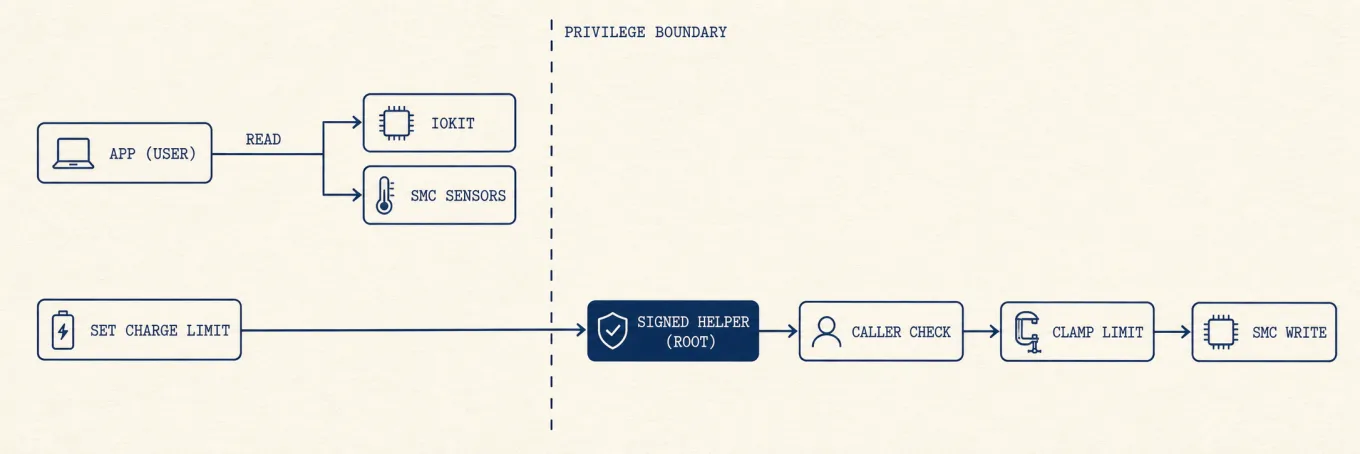
Where a history view helps
Battery settings and system_profiler are enough for the periodic check. What neither
shows is how the readings relate: capacity goes fastest on a Mac that sits warm under
load while plugged in, and that pattern only appears when power draw, temperature, and
charge state are on one screen instead of three. Mole's Status tab keeps those
tiles together with a rolling sparkline, so the correlation is visible while it happens
rather than reconstructed afterwards. It is a companion to the written quarterly
record, not a replacement for it.
Whichever tool shows you the numbers, the rule for changing them does not move: use Apple's native Charge Limit where the Mac supports it, and reach for a third-party control only once you know its privilege boundary and which models it actually covers.
Decide what to do
| What you see | Sensible next step |
|---|---|
| Normal condition and expected runtime | Keep current charging settings and add another quarterly record |
| Normal condition but repeatably short runtime | Check Activity Monitor, updates, brightness, and workload; run Apple Diagnostics if the change persists |
| Service Recommended, without safety symptoms | Back up, check coverage, and arrange qualified service; Apple says you can continue using the Mac while waiting |
| Repeated shutdowns, charging failure, or a rapid trend change | Back up promptly, run Apple Diagnostics, and contact Apple or an authorized service provider |
| Case deformation, a lifting trackpad, smoke, odor, or abnormal heat | Stop using and charging the Mac if it is safe to do so; do not press or puncture the battery; seek qualified service |
Apple says macOS battery-health reporting is more reliable than third-party condition apps for service decisions. Apple's battery service guidance also explains Service Recommended, Apple Diagnostics, coverage, and repair options.
A practical rule
Use four signals together: Maximum Capacity, Cycle Count for the exact model, Condition, and repeatable runtime. Keep charging features within their documented macOS and hardware boundaries, avoid sustained heat, and act sooner when symptoms change. A single 80% reading is context, not a diagnosis.