What Is ~/Library/Caches on Mac? What Is Safe to Delete?
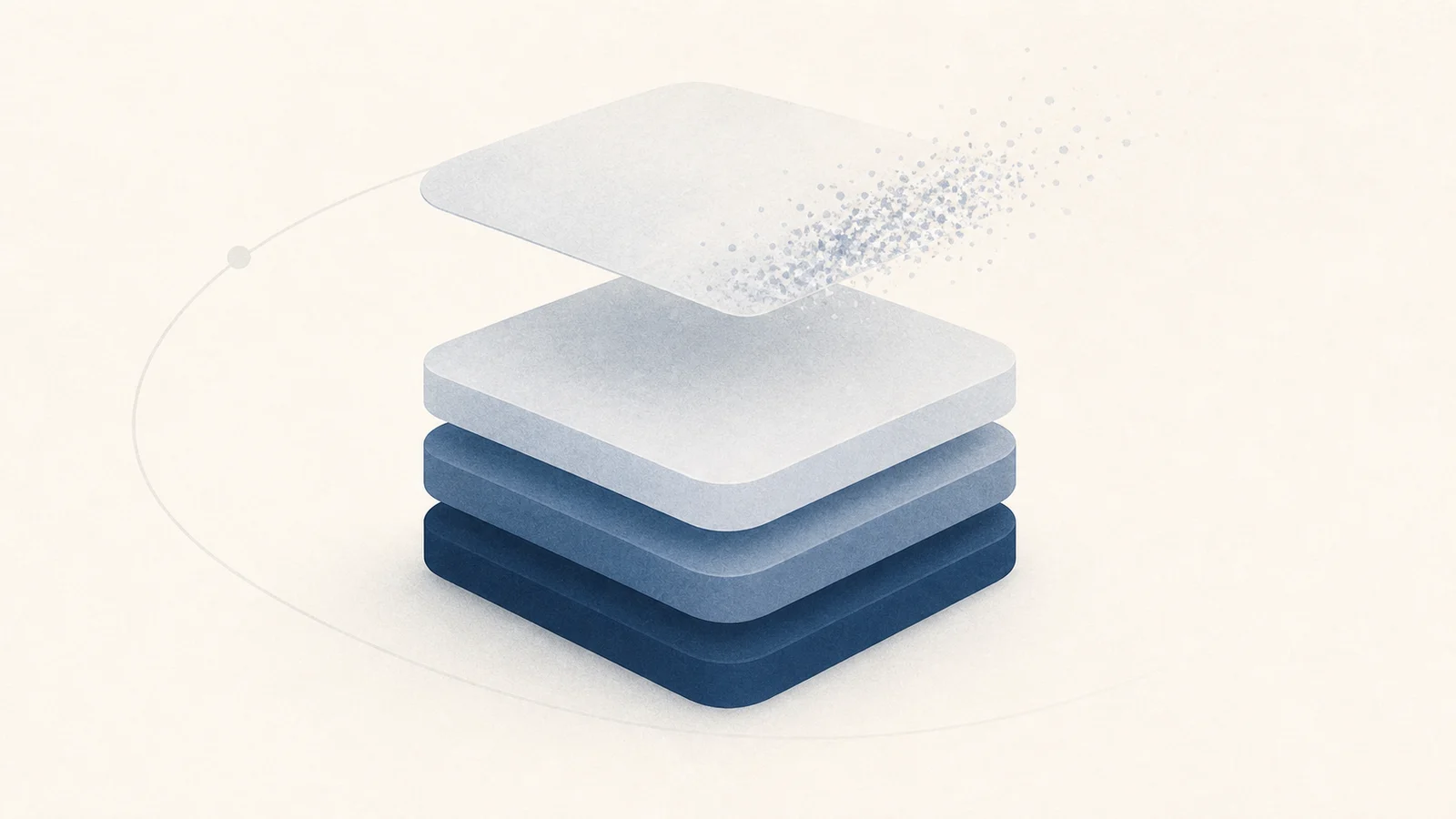
A folder named Caches is a clue, not proof that everything inside can be deleted. A true cache is a replaceable copy of something that still exists elsewhere: a remote file, an original document, a compiled artifact, or data the owning app can recreate. If the source is gone, encrypted, or unique to this Mac, the folder is not disposable no matter what its parent is called.
Apple's Library directory guidance draws the useful boundary. Cache data can be regenerated and an app should not depend on its continued existence. Application Support has a different contract and can contain user data or resources the app needs. Treating every large Library folder as temporary is how logins, offline work, databases, and downloaded models disappear.
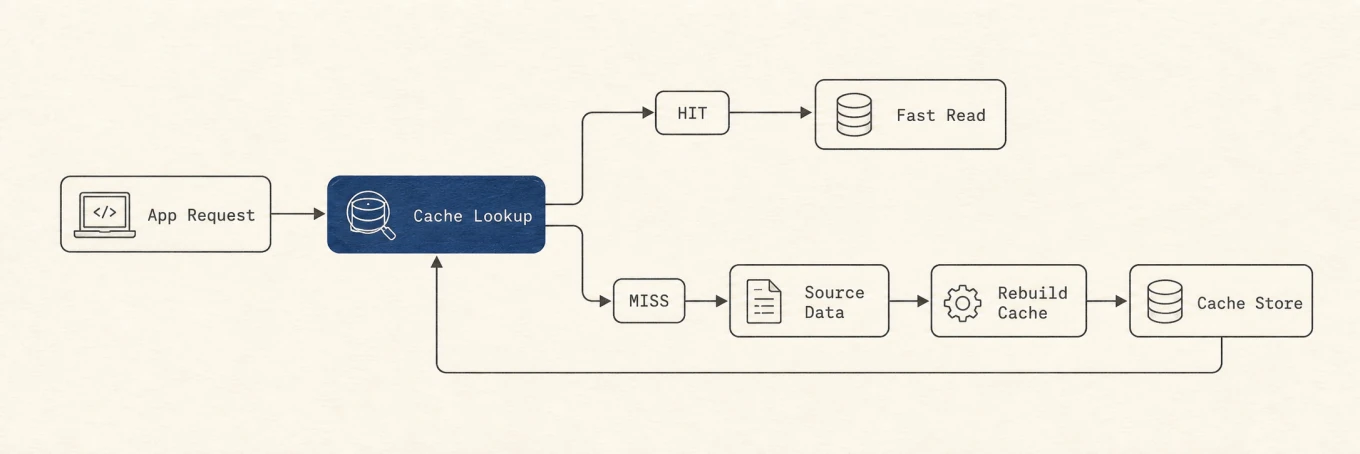
On a cache hit, the app reads the local copy and continues. On a miss, it returns to the source, rebuilds the copy, and may store it again. If you cannot name that source, you cannot know whether a miss is recoverable.
~/Library/Caches and /Library/Caches have different scopes
The tilde matters:
~/Library/Cachesbelongs to the current user. Apps commonly keep a child folder named after their bundle identifier, such ascom.example.MyApp./Library/Cachesis in the Mac's local Library. Its contents can serve system-wide software or more than one user and often have different ownership.
Apple documents the bundle-identifier convention, but a familiar name is not a safety certificate. An app can keep a cache database, session state, and downloads next to one another. Sandboxed apps can also keep related material inside Containers rather than the top-level user Caches directory.
Never recursively delete either Caches root. ~/Library/Caches is a mixed
neighborhood containing browsers, developer tools, sync clients, and helpers.
/Library/Caches has a wider impact. If an item there refuses inspection because of
permissions, stop. A permission error is not a reason to add sudo to a generic
cleanup command. Start with the owning software's controls or Apple's guidance.
Anything under /System is outside this cleanup surface. Apple's
file system overview
reserves /System/Library for Apple.
Classify the contents before deciding
Four kinds of files often sit close together. Their default actions are different.
| Kind | Clues | What deletion can cost | Default action |
|---|---|---|---|
| Cache | Thumbnails, compiled output, downloaded copies with a known source | Time, CPU, battery, and network while the owner rebuilds | Review, then use the owner's cleanup interface |
| State or session | Open tabs, window restore, cookies, drafts, tokens | Signed-in sessions, restore points, unsaved work, offline continuity | Keep unless the owner offers a specific reset |
| Database or index | .db, .sqlite, Index, encrypted or content-addressed stores |
Search history, offline records, references, or the authoritative local copy | Keep unless the owner explicitly documents safe rebuilding |
| User data | Documents, photos, mail, chats, profiles, credentials, model weights | Permanent loss or a large re-download of material chosen for offline use | Never treat as generic cache |
The database row needs particular care. An index can be disposable, but the same file shape can be the only local copy of mail, notes, or site data. An encrypted index does not reveal which records remain referenced. If the owner does not document a prune or reset operation, leave it.
Application Support, Containers, Group Containers, preferences, keychains, and hidden tool directories follow the state or user-data rule until their owner proves a specific child is rebuildable. A cache-like name inside those trees does not change the recovery contract.
Measure the large owners first
Start with a size listing, not a delete:
du -sh ~/Library/Caches/* 2>/dev/null | sort -h
du -sh /Library/Caches/* 2>/dev/null | sort -h
Read from the bottom. The last few lines are the largest children. Match each one to an app, bundle identifier, or documented tool cache. If the owner is unclear, stop there. A 50 MB cache with a clear owner is safer to evaluate than a 20 GB opaque directory.
These numbers are measurements, not promises about recoverable space. Files can stay
open, APFS can share blocks through clones and snapshots, and Finder, du, and System
Settings group storage differently. Apple's
Mac storage guide describes System Data as
the broad remainder for Apple and third-party files that do not belong to a more
specific category. That label is not a directory and should not be used as a deletion
target.
Ask five questions before deletion
- Who owns this folder? Identify the app, command-line tool, bundle identifier, or system service. Similar names are not enough.
- Can the owner rebuild it, and from which source? Name the remote artifact, original file, or deterministic build input. "The app probably recreates it" is not evidence.
- What does a cache miss cost? Rebuilding may take hours of compilation, battery, and network traffic, or remove offline availability until a download completes.
- Is the owner active? Quit the app and check related downloaders, package managers, model servers, or background helpers. Removing an open or memory-mapped database can leave it inconsistent.
- What is the recovery path? Prefer an owner-provided command with preview. For a narrowly identified manual removal, keep the item in Trash until the app has been tested.
An unknown answer means keep the folder. The goal is not to force every candidate through a cleanup; it is to find the few candidates with a complete recovery story.
Prefer the owner's cleanup interface
The owner understands references, shared blobs, active versions, and files that look old but remain required. Its interface can remove less and recover more safely than a recursive filesystem command.
Browsers
Chrome's Delete browsing data separates cached images and files from cookies, site data, history, passwords, site settings, and offline hosted-app data. Choose only Cached images and files when the goal is cache recovery. Clearing cookies or site data can sign you out and remove offline state. Deleting signed-in browsing data can also affect synced information.
Other browsers make similar distinctions even when their labels differ. Use the browser's storage or privacy controls and read every selected category. Do not delete the browser profile folder to clear a page cache.
Developer tools
Developer caches can be large because they trade disk space for faster builds and installs. The command needs to match the owner.
Homebrew documents brew cleanup --dry-run as a preview of stale downloads and old
installed versions, followed by brew cleanup if the plan is correct. Use that
documented cleanup
instead of deleting Homebrew's cache root. A preview also shows when the expected
savings come from an installed version rather than a download.
npm describes its cache as self-healing. Start with:
npm cache verify
The command checks integrity and garbage-collects unneeded content. npm's
cache documentation
says a forced clean is generally unnecessary except for deliberate space recovery.
Do not make npm cache clean --force a routine maintenance step.
Xcode Derived Data can be rebuilt when the source, dependencies, and toolchain remain available, but doing so can consume substantial time and energy. Quit Xcode and stop any builds, target the project you actually intend to rebuild, and use Xcode's own clean or settings surfaces where possible. Package repositories, signing assets, simulator data, and source checkouts are not Derived Data just because they belong to a developer tool.
AI tools and downloaded models
AI directories often combine caches with models, chat history, credentials, sessions, and indexes. Those categories need explicit selection.
Hugging Face provides hf cache ls to inventory repositories and revisions. It also
supports a dry run for selected removal and a prune command for detached revisions:
hf cache ls
hf cache rm model/example --dry-run
hf cache prune --dry-run
Use the current Hugging Face cache commands instead of deleting content-addressed blobs by hand. Shared files and revision references make raw folder size a poor guide to what is unreferenced.
Ollama exposes a model inventory and a selected removal command:
ollama ls
ollama rm <model>
Those commands come from Ollama's CLI reference. A model is deliberately downloaded content, not a generic cache. Removing it trades storage for the time and bandwidth required to fetch it again. Never clear model directories, conversation history, credentials, profiles, or active databases merely because they sit under a hidden tool folder.

A cleanup tool should show the owner, path, size, and category before taking action. It should also exclude documents, profiles, conversations, model stores, and unknown Application Support data. Mole's Clean view follows that review-first shape. The important property is the safety boundary, not the number of items found.
If manual removal is still necessary
Manual removal belongs at the end of the process, after the owner has no suitable interface and the folder has a complete answer to all five questions.
- Quit the owning app and any related background process.
- Move one narrowly identified cache child to Trash. Do not move either Caches root.
- Reopen the app and repeat the task that used the cache.
- Verify documents, logins, offline data, preferences, and any build or model the app should still know about.
- Check actual available storage, then empty Trash only after the app passes those checks.
Apple's Mac storage guide notes that moving a file to Trash does not make its space available until Trash is emptied. That delay is useful here because it keeps a recovery window. Owner commands such as Homebrew, npm, Hugging Face, or Ollama may delete directly, so do not assume their results can be restored from Trash. Their preview and selection controls are the recovery boundary.
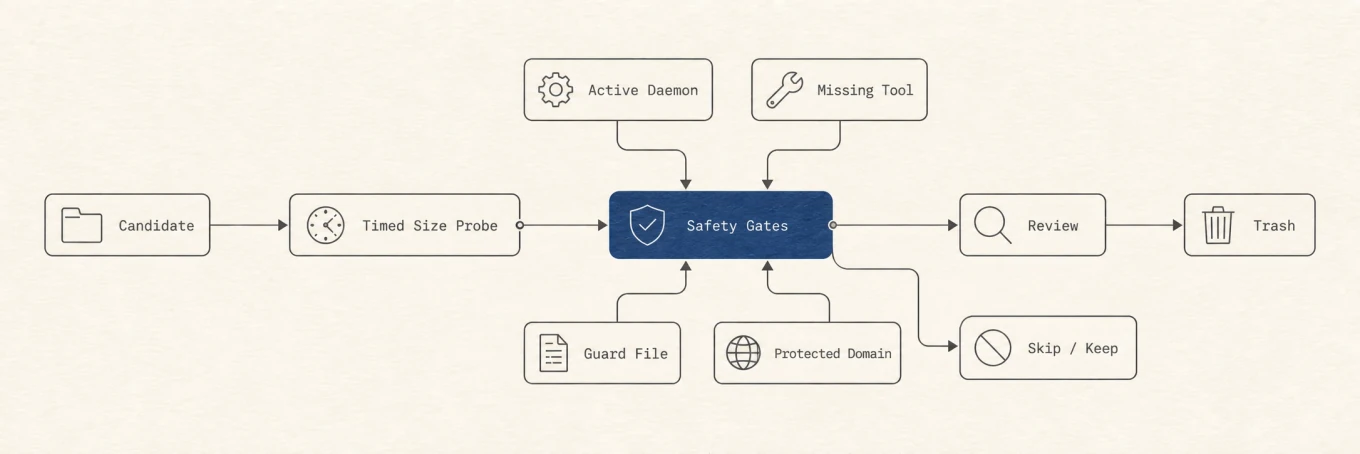
Safe cleanup is a sequence of gates. A known path can still be skipped because its owner is active, the size probe failed, the cleanup command is missing, or protection rules classify it as state. A recursive deletion of an entire Caches folder bypasses all of those decisions.
Why the cache and System Data can grow again
A cache that stays empty is often a cache the app no longer uses. Normal apps rebuild thumbnails, download package archives, recompile derived output, and recreate search indexes. The next launch can therefore use more CPU, energy, network traffic, and disk space. Regrowth does not prove the cleanup failed; it proves the owner needed the data again.
System Settings may also update later or continue assigning the rebuilt files to System Data. Because System Data is a broad category rather than one folder, its graph can lag behind actual file operations or stay large for unrelated reasons. Check the Mac's available storage and the measured owner directory. Do not keep deleting new categories to chase a delayed label.
The safe sequence stays short: measure, identify the owner, classify the contents, ask the five recovery questions, use the owner's preview or cleanup control, and test the app before any permanent removal. A cache is safe to clear only when the source and the recovery path are both known.