Free Up Photos Library Storage on Mac Safely

The Photos library is often one of the largest items on a Mac. Unlike an ordinary folder, it combines originals, edits, previews, metadata, and a database. The safe options are therefore to optimize it, curate it in Photos, or move the whole library. Opening the package and deleting whatever looks large can damage the library.
Where your photos actually live
By default, Photos uses a package named Photos Library.photoslibrary in your
Pictures folder. It contains imported originals, edits, thumbnails, and the database,
but a library can live elsewhere and referenced originals can remain outside it. Measure libraries in the default folder:
du -sh ~/Pictures/*.photoslibrary 2>/dev/null
The important rule: never delete files inside that package by hand, because doing so corrupts the library. All safe reduction happens through the Photos app or iCloud settings.
Optimize Mac Storage
If you use iCloud Photos, the single biggest lever is Optimize Mac Storage. Turn it on in Photos > Settings > iCloud. iCloud keeps full-resolution originals and the Mac can retain smaller versions locally, downloading an original when needed.
Optimization is demand-driven, not an immediate purge. The library may shrink only as macOS needs space, and recently used originals may remain local. Confirm that iCloud Photos has finished syncing before relying on it. Also remember that synchronization is not backup: deleting a photo in an iCloud Photos library deletes it from the other devices using that library too.
Duplicates and deletions
Two more reliable wins:
- Duplicates. Photos detects duplicate photos automatically. In the sidebar, open Utilities > Duplicates, then review what it found before merging. Apple's Duplicates guide notes that analysis can take time and that merged-away copies move to Recently Deleted.
- Recently Deleted. Deleting a photo moves it to Recently Deleted, where it keeps taking space for 30 days. To reclaim it now, open that album and permanently delete only the items you no longer need. Emptying it removes the recovery window.
Large videos are worth a special pass. Photos does not provide a general sort-by-file- size view, so start with Media Types > Videos, look at duration and file details, and review screen recordings, slow-motion clips, and accidental recordings. A few long 4K videos can outweigh thousands of still photos.
Move the whole library when local access matters
If you want full originals available without consuming the internal SSD, move the
entire Photos library to a properly formatted external drive. Quit Photos, copy the
.photoslibrary package as one item, open the copied library while holding Option,
and verify albums, edits, and recent imports before removing the old copy. Confirm that
the originals you need offline have downloaded, and back up any externally referenced files separately. Apple's
library move guide requires APFS or Mac OS Extended
(Journaled), and warns against a Time Machine backup volume, SD card, USB flash drive,
network share, or cloud storage as the working library location.
If you use iCloud Photos or the system Photo Picker, designate the moved library as
the System Photo Library after opening it. Only that library participates in
iCloud Photos. Keep the external drive connected before opening Photos; if the library
is unavailable, Photos can create a new empty library in ~/Pictures, which can look
like your collection disappeared.
An external library still needs a separate backup. Keeping the working library and its only backup on the same drive protects against neither drive failure nor loss.
Under the hood: inside the photo library package
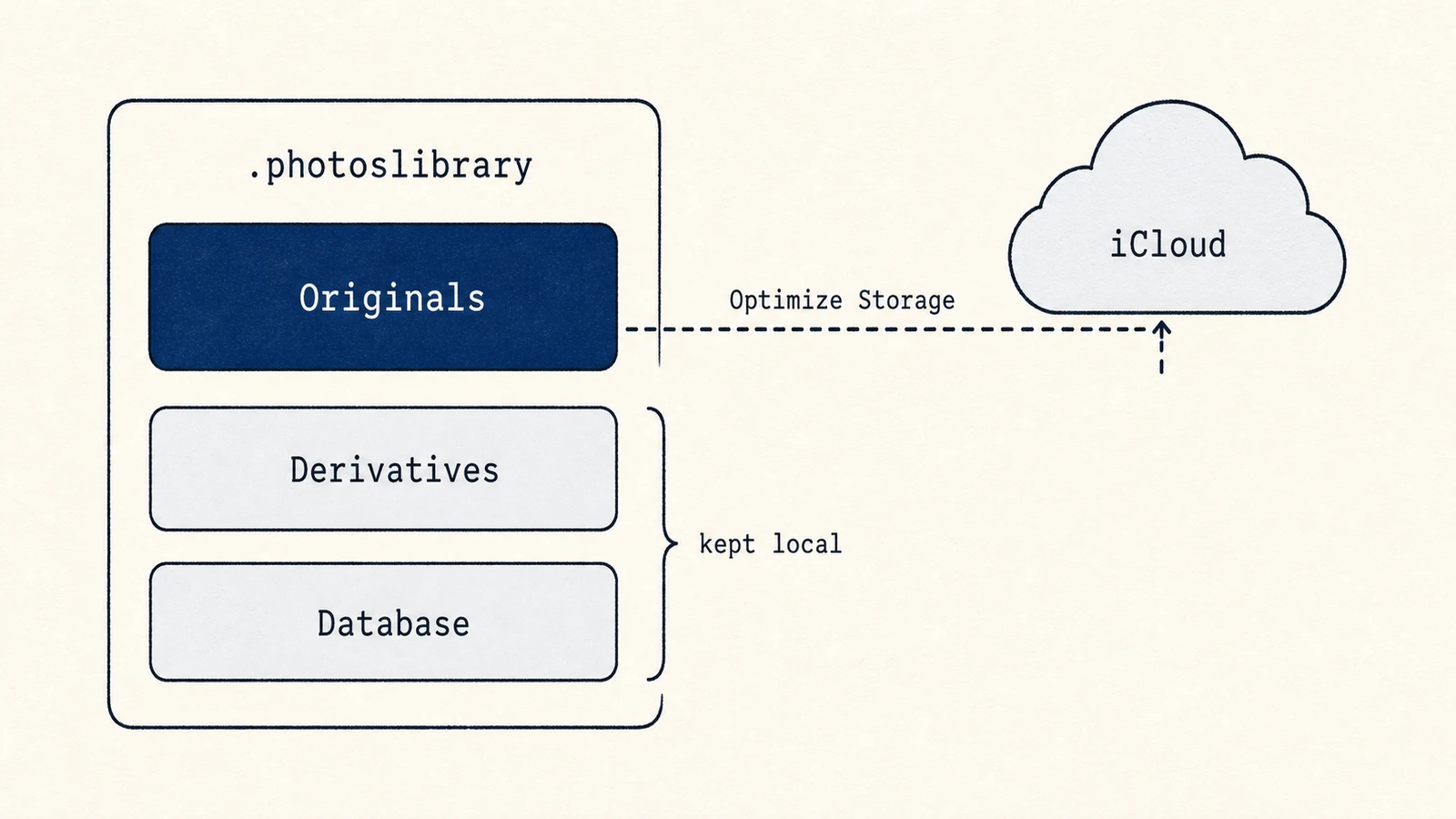
The .photoslibrary is a package, a folder macOS shows as one file, with a defined
structure: originals holds your untouched masters, resources/derivatives holds the
previews and thumbnails Photos renders for fast scrolling, and a SQLite database tracks
albums, edits, and metadata. Edits are stored non-destructively, as adjustments layered
over the original, which is part of why the library is larger than the raw photos
alone. Optimize Mac Storage can replace some local originals with optimized versions
while retaining enough metadata and rendered content to browse the library. The
internal layout is an implementation detail and can change between macOS releases.
Treating it as a public folder structure risks breaking database references and future
migrations.
Where a disk map helps
Because the library appears as one opaque package, a disk map is useful for comparing it with virtual machines, developer data, and other large items. Mole's Analyze view shows that comparison but deliberately does not reach inside the library. Photos, iCloud, and a verified whole-library move are the appropriate tools for changing it.
A safe order of operations
Measure the library, confirm iCloud sync and backups, then choose one strategy. Use Optimize Mac Storage when cloud-backed, on-demand originals fit your workflow. Curate duplicates and large videos when you truly no longer want them. Move the complete library when you need local originals on external storage. Never delete inside the package, and do not confuse an iCloud-synchronized library with an independent backup.