What Is System Data on Mac Storage, and How to Reduce It
Open Apple menu > System Settings > General > Storage and you may find a large block labelled System Data. It is not a folder and it is not a stable measurement. Apple defines it as a general category for Apple and third-party files that do not fit a more specific category. The number can change after indexing or reclassification even when you have not deleted a file. Apple's Storage guide lists logs, caches, virtual-memory files, temporary files, fonts, app support files, plug-ins, and other runtime resources managed by macOS.
The useful question is not "How do I delete System Data?" It is "Which real files are using capacity, who owns them, and can I recover them?"
The 30-second check
Before cleaning anything:
- Open System Settings > General > Storage and note the available space.
- Open Disk Utility, select the internal APFS container, and compare its free space with the Storage view.
- If the Mac can still save files, install updates, and complete normal work, a large System Data block alone is not a fault.
- If available space is genuinely low, find the largest identifiable folder before deleting anything.
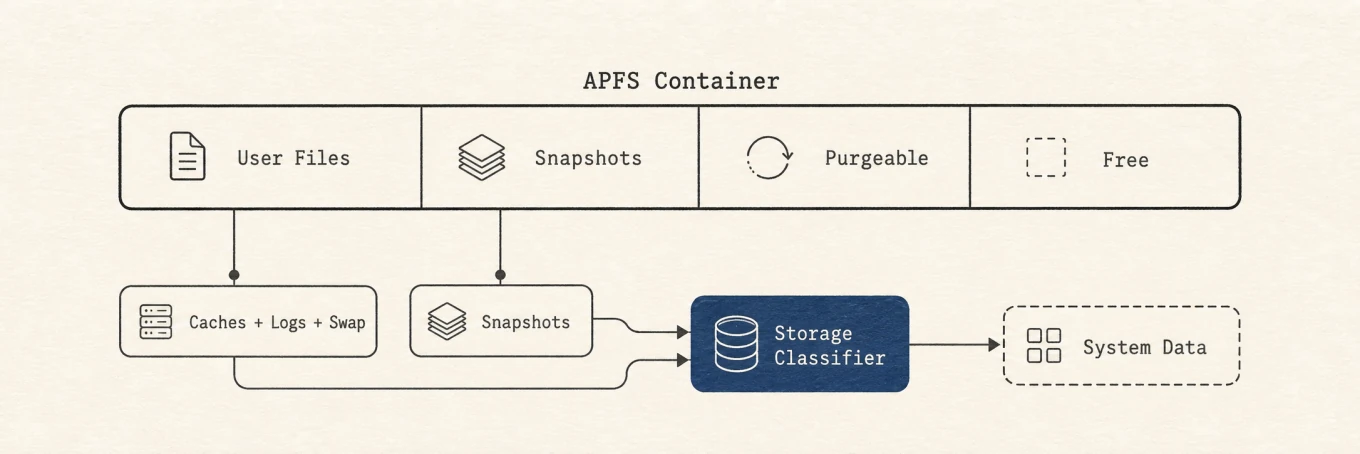
Apple distinguishes free storage, which is physically open space, from available storage, which also includes purgeable caches that macOS can reclaim. A disk can therefore show some space as both used and available. This is one reason the grey block is a poor cleanup target.
System Data is a classification, not a place
System Data is everything macOS has not confidently sorted into Apps, Documents, Photos, Mail, or another visible category. It can include files from several physical locations:
- App and system caches under
~/Library/Cachesand/Library/Caches - Logs, crash reports, and diagnostic archives
- Time Machine and update snapshots on APFS volumes
- App support files, containers, databases, and downloaded content under
~/Library - System update files, fonts, plug-ins, the Spotlight index, and on-device Apple Intelligence models
- Swap and virtual-memory files that grow and shrink with memory pressure
There is no single System Data directory to empty. Storage settings estimate and classify these items. Deleting a directory simply because it appears under System Data can remove a photo library, a virtual machine, an offline model, or the only copy of an app database.
iPhone and iPad backups are not part of it: Storage settings counts them under iOS Files, and iCloud Drive files kept on the Mac under Documents. To remove an old backup, check the device and date in Finder's Manage Backups view first, as Apple describes in Locate and manage backups.
The separate Other Users & Shared category is another storage classification, not permission to delete account folders. Read it before touching /Users or /Users/Shared.
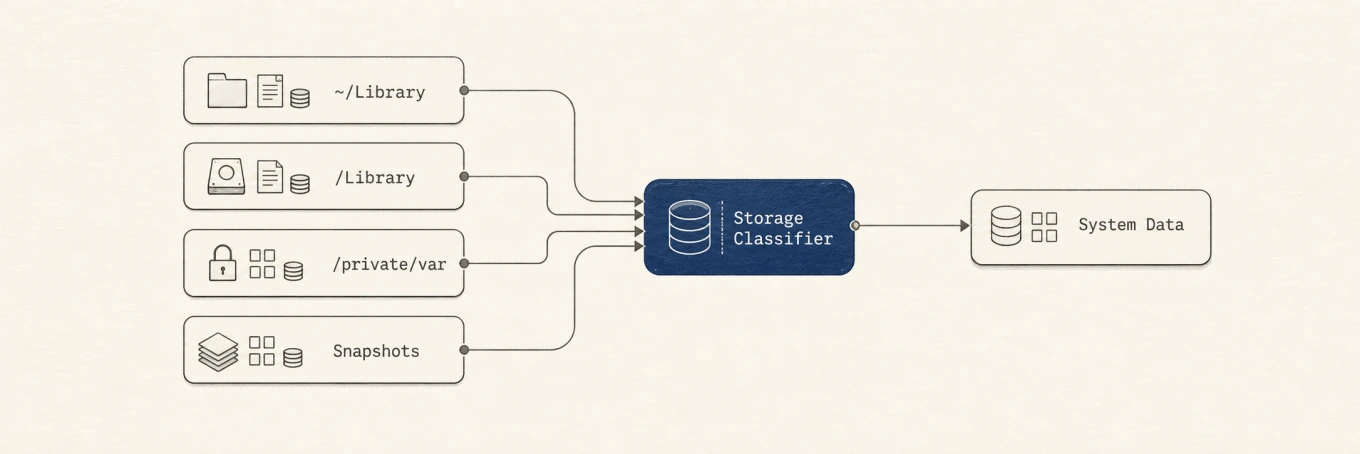
~/Library, /Library, /private/var, and snapshots into one Storage category.Six common reasons it grows
- Caches and logs outgrow their limits. macOS removes some safe caches and logs when space is needed, but an app with a broken retention policy can still create gigabytes of data. The owner and recovery cost matter more than the word "cache."
- Snapshots preserve changed blocks. Time Machine creates local snapshots, and macOS can create another before an update. A file you deleted may remain referenced until the relevant snapshot ages out. Apple says snapshot space is counted as available and snapshots are removed automatically as they age or space is needed.
- Interrupted system downloads stay behind. The background service that
fetches Aerial wallpapers runs as root and stages each video in a temporary
folder under
/private/var/folders. When it gets stuck re-downloading, hundreds of aborted files of about 1 GB each can pile up, and one reported Mac reached 221 GB. Finder and an ordinaryducannot look inside that folder, so the space only shows up as System Data. - Developer tools keep rebuildable artifacts. Xcode, package managers, simulators, build systems, and containers can each hold many versions of downloads or build output. They also keep projects, credentials, toolchains, and active state nearby, so use each tool's supported cleanup command or follow a developer-cache guide.
- Virtual machines and containers use sparse disk images. Their apparent, logical, and allocated sizes can differ. Delete a VM or image through the owning app only after checking whether it contains the sole copy of a project or database. Docker users can start with the Docker cleanup guide.
- App support holds real content. Browsers, games, media apps, AI tools, and
sync clients store offline media, models, indexes, or cloud placeholders in
Library paths. These files may be replaceable, expensive to download again,
or unique.
Application Supportis not another name for cache.
Why the numbers do not match
Storage settings, Finder, df, du, and APFS tools answer different questions:
| View | What it tells you | Why it can differ |
|---|---|---|
| Storage settings | A category estimate | Indexing and classification can lag |
| Finder Get Info | A file or folder's logical size | Clones, sparse files, and permissions affect the result |
du |
Blocks reachable through a directory walk | It can skip protected paths and count links differently |
df |
Used and available space for a mounted file system | It includes file-system accounting, not Storage categories |
| APFS container view | Capacity shared by all volumes in a container | Snapshots and sibling volumes also consume container space |
Apple's APFS guide explains that volumes share the free capacity of their container and allocate it on demand. Do not add up every Finder folder and expect the result to equal one Storage category.
Storage settings takes its figure from a private macOS service that other apps cannot query. It also counts files that even Full Disk Access cannot read, such as Apple Intelligence models, and on one Mac two readings taken a few minutes apart differed by 68 GB. Use the category as a rough pointer, not a number to match.
Measure the disk without changing it
These commands are read-only:
df -h /
diskutil apfs list
diskutil apfs listSnapshots /
df reports what the mounted file system considers used and available.
diskutil apfs list shows the shared container, its volumes, and remaining
capacity. diskutil apfs listSnapshots / lists snapshots attached to the
startup volume. Disk Utility can also show snapshot metadata through View >
Show APFS Snapshots, as described in
Apple's snapshot guide.
List Time Machine snapshots without modifying them:
tmutil listlocalsnapshots /
Then measure the top level of your Library:
du -sh ~/Library/* 2>/dev/null | sort -h
The scan can take time and may omit protected locations without Full Disk Access. Drill into only the folders that are both large and attributable to an app. A permission error is missing measurement, not proof that the hidden path is disposable.
Reduce it in risk order
Work from easiest to recover toward hardest to recover:
- Remove large downloads, old installers, and duplicate exports that you own and can reproduce.
- Use the app's documented cache control and follow its instructions about quitting. For manual cache removal, quit the app first. Expect a slower launch or another download.
- Remove obsolete iPhone or iPad backups through Finder's Manage Backups, after checking the device and date.
- Use the owner tool for build output, simulators, container images, virtual machines, and downloaded models. Preview the plan when the tool supports it.
- Release local Time Machine snapshots only when you need the space now. Time Machine keeps making new ones while automatic backups are on and leaves your backup disk alone, but the restore points kept on this Mac go with them.
Mole's Clean page opens with a System Data group that holds only what it can clean there: local snapshots, system caches and logs, old macOS installers, and stale wallpaper downloads. If Mole has never had administrator access, cleaning system files asks for the password once. iPhone backups, iCloud Drive files, virtual machines, and local AI models are listed under Other Storage with their size and where to manage them, and Mole never deletes them. The group counts what Mole can free, so it will not match the Settings figure, and Analyze draws the remaining folders by size. The useful result is attribution, not forcing System Data to reach an arbitrary number.
What never belongs in a normal cleanup
Do not manually remove:
- Anything under
/System - APFS or Time Machine snapshot internals
- Swap and virtual-memory files
- Active Mail, Messages, Photos, browser, or sync databases
- Containers whose owner and recovery path you cannot name
- Cloud placeholders or local files that may be the only complete original
Do not grant a tool permission to delete merely because a path is large. File size proves impact, not disposability.
Why the number can lag after cleanup
Moving a file to Trash does not release its capacity until Trash is emptied. Even after permanent removal, an APFS snapshot may still reference old blocks, and Storage settings may need time to index and reclassify what remains. macOS can also count purgeable data as available before it physically removes it.
Check df -h / and the APFS container again after the Mac has been idle. Judge
the result by usable capacity and whether the identified large folder shrank.
Do not repeatedly delete more data because one category has not redrawn yet.
FAQ
Is 50 GB of System Data normal?
There is no universal normal size. A Mac with Xcode, virtual machines, or large app libraries can have much more System Data than a lightly used Mac. Check available capacity and identify the largest real folders.
Can I delete ~/Library/Caches?
Do not empty the whole directory. Quit the owning app and clear only a large, identified cache whose consequences you understand. Some apps keep offline or unsynced state near cache data. See what is safe to delete in Library caches.
Should I delete local snapshots?
Only when you need the space now. Apple says Time Machine counts their space as
available and removes snapshots automatically
as they age or capacity is needed. Releasing them early with
tmutil deletelocalsnapshots /, or with the snapshot row in Mole's System Data
group, frees the blocks at once. Backups on your backup disk stay, but the local
restore points are gone until Time Machine makes new ones. Mole selects that row
by default because the snapshots rebuild on their own; uncheck it if you rely on
those restore points.
Will restarting reduce System Data?
A restart can finish an update or clear temporary state from a stuck process, but it is not a routine storage treatment. Swap, caches, and category estimates will grow again as macOS and apps resume work.
When should I stop?
Stop when the Mac has enough available capacity for normal work and updates, and the largest confirmed problem has been resolved. If space is still low, clean up disk space by recovery risk rather than chasing the grey category.