Which App Is Using Your Mac Microphone? Control Center
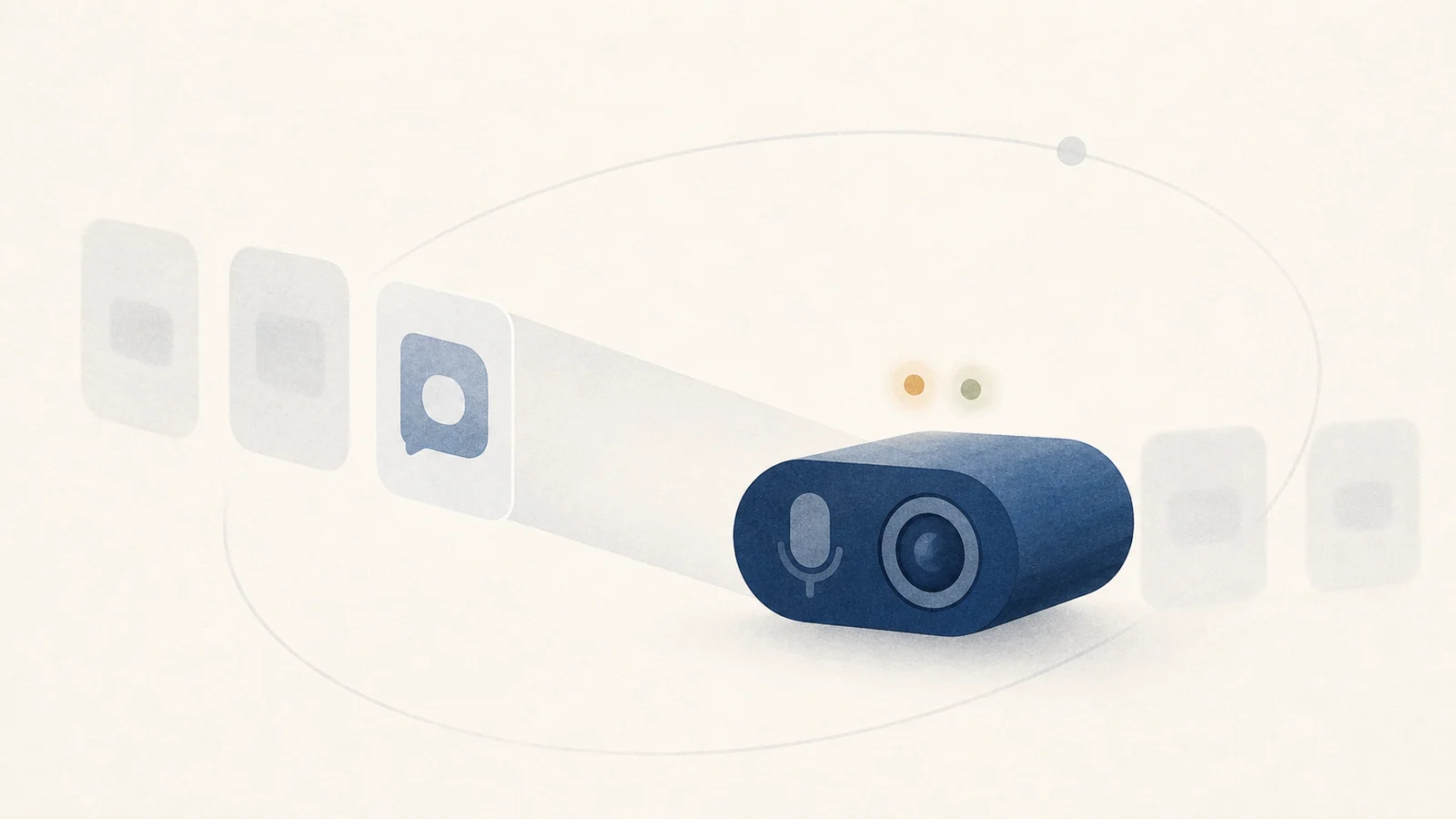
When an orange or green privacy indicator appears, macOS is reporting microphone or camera access. Control Center can usually name the app, but a browser or remote-session app may be the outer process while one tab, extension, or remote participant initiated the request. Attribution has layers, so start with macOS and then inspect the owning app.
The fastest route is to open Control Center while the dot is still visible. It can name the app, but not always the tab, extension, or remote session inside it. Treat the list under System Settings > Privacy & Security as a permissions list, not a live activity log.
Read the privacy indicator first
Apple's current Control Center guide documents four privacy indicators: orange means the microphone is in use, green means a camera is in use, purple means system audio is being recorded, and an arrow means location is in use. macOS shows only one privacy dot at a time. If the camera and microphone are active together, the green camera dot takes precedence.
Apple designs the built-in camera so its green hardware light accompanies camera use. External cameras have their own indicator behavior, so do not generalize the built-in hardware guarantee to every USB device.
Seeing the dot without having started a call is worth a look. Sometimes it is harmless, a browser tab that grabbed the mic, a shortcut, a meeting app checking its devices. Sometimes it is an app you would rather did not.
Find the app in Control Center
The fastest way to name the owner is Control Center. On macOS 13.3 or later, the top of Control Center may show which apps are using the microphone, camera, location, or system audio, with a Privacy window for more detail. Open it while the indicator is present. If it names Safari, Chrome, or another browser, inspect that browser's site-permission and tab indicators to find the page. For meeting, recording, and remote-desktop apps, check their active session and plug-ins.
Check and revoke permissions
Control Center tells you about current or recent use; System Settings > Privacy & Security shows which apps have permission. Open the Microphone and Camera lists there. Apple's microphone permission guide describes this as an access list, not a historical usage log. Revoking access is appropriate for an app that no longer needs the device, but it may require quitting or restarting the app before the change is fully reflected.
What macOS will not tell you
The indicator and Control Center cover current or recent system-visible access, but Privacy & Security is not a complete historical audit. Third-party apps do not receive every private attribution signal available to macOS UI, and a browser-level process name still may not identify the tab. No monitor should promise a perfect camera and microphone timeline across every capture path and macOS version.
Under the hood: how a Mac knows the camera is on
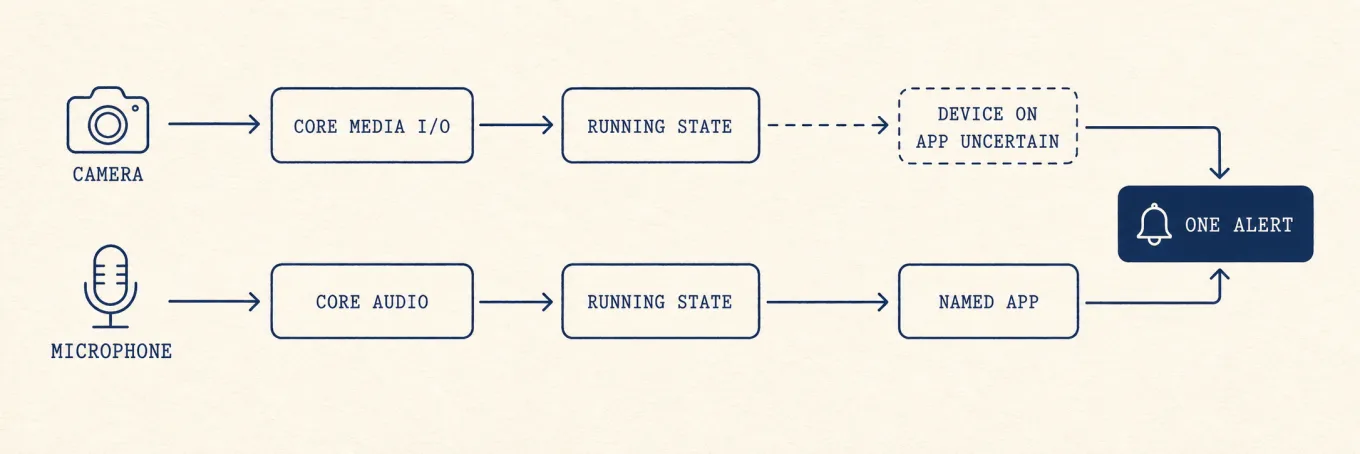
The green and orange dots are controlled by macOS rather than by the requesting app. Capture flows pass through system media frameworks and privacy authorization, allowing macOS to present an indicator. Device-running state, permission ownership, and the user-facing app name are related but not identical signals.
Device state can tell a monitor that capture began without always providing the same app identity shown by Control Center. A careful tool should preserve that uncertainty instead of turning a device event into an invented process name.
Where an additional alert helps
Because the menu-bar indicator is easy to miss, Mole can post a local notification when capture state changes and name the source only when the available signal supports it. This is a convenience for noticing the event, not a replacement for Control Center, browser tab inspection, or Privacy & Security permissions.
A repeatable privacy check
Open Control Center while the indicator is present, identify the owning app, then drill into its tab, extension, call, or recording session. Review permission separately in Privacy & Security and revoke only what the app no longer needs. If attribution is uncertain, stop one capture-capable app at a time and watch the system indicator rather than trusting a guessed process name.